Sunday, August 24, 2014

Biggest Facebook Mistakes

5 of the Biggest Facebook Mistakes and How to Fix Them

by on August 22, 2014
The world's biggest social network turned 10 this year. With 57% of the American population — and 73% of teenagers — among its user base, Facebook has morphed from a way for college undergrads to communicate to a multi-tentacled service that has become an integral part of our everyday life. From connecting us with long-lost friends to serving as the internet's de facto photo-sharing service to doubling as a universal login to thousands of sites and apps across the internet.
But with regular introductions of privacy-flouting new features and different sets of etiquette for connecting with colleagues, friends, and family, it can be all too easy to make a Facebook misstep that sends the wrong message into the world.
Below are five of the most-common Facebook faux pas – and how to avoid them.

1. Not putting a professional face forward

If you haven't been keeping an eye on your privacy settings, photos and posts intended for friends can end up on your boss's newsfeed. A CareerBuilder study found that nearly 39% of employers use social media to screen job candidates, and a 2012 report from technology research company Gartner predicted that by 2015, 60% of employers will be monitoring employees on social networks.
If your boss is your Facebook friend, you can prevent him or her from seeing what you post by going to Settings > Privacy > “Who can see my future posts”, selecting “Custom” from the dropdown menu and add their names. To keep them from seeing posts and photos you're tagged in, go to Settings > Timeline and tagging > “Who can see things on my timeline,” select Custom from the dropdown menu, and add their names.
If your boss or potential employer isn't your Facebook friend, simply go to Settings > Privacy then select “Friends only” as the audience for “Who can see my future posts” and “Limit past posts.” On the same page, you can also edit who can look you up — public, friends of friends, or friends only — and disable Google and other search engines from linking to your Facebook profile.
Finally, you can create a Restricted list — anyone on this list can only see the information and posts you make public. This can be an effective way to avoid looking suspiciously absent from Facebook, without giving up too much information. Head to Settings > Blocking, and edit “Restricted List.”
In all cases, if you and your boss have mutual friends, he or she will still be able to view any posts or photos you may be tagged in with those friends.

2. Oversharing, oversharing, oversharing

We've all done it, but now there’s proof that oversharing is the easiest way to get unfriended on Facebook. A study by Christopher Sibona at the University of Colorado Denver found that the top four reasons people delete friends are because their posts are frequent or trivial posts, polarizing, inappropriate, or too mundane.
“Share things that are meaningful, witty, newsy or interesting — and be discriminating in how often you post on Facebook,” recommends Jessica Kleiman, a communications specialist and co-author of the book Be Your Own Best Publicist.
Still, that doesn't mean there isn't an audience for that polemic on national politics (or what you had for breakfast). If there are particular people you think would appreciate more controversial — or more mundane — statuses, you can customize the audience for individual posts. Below the status box, click the tab next to “Post” and select Custom to bring up options for “Who Should See this?.” You can then select a specific audience such as Close Friends, or a custom list (if you made one), say for your sports league. You can also select Custom and manually enter friends that can or can't view the post. You can make this setting your default to avoid future oversharing.
However, Kleiman cautions, “even if you use filters on Facebook to keep your posts only visible by ‘friends,’ one of your 850 closest friends online is probably friends with someone you wouldn't want to see that post.”

3. Allowing Facebook apps to overshare for you

Along with posts about that ham and cheese toastie you were eating, oversharing may take the form of posts by apps you've linked to Facebook.
Privacy protection company Secure.me found that 63% of apps request the ability to post on the user's behalf. While giving this permission may allow your info to be shared where it shouldn't, more irking is the fact that, say, Spotify can post what ‘80s pop ballad you're listening to, or Candy Crush Saga can update all your friends on your progress.
You can allow or disallow third-party apps to post to Facebook when signing up, but if you didn't do that, you can edit all permissions from a single page. Select Activity Log from the top right dropdown menu on your profile or news feed, then All Apps (on the left) to view posts made by apps.
To prevent individual apps from posting, hit More (under All Apps), scroll to the offending app, then click the top-right arrow to customize where the app can post to on your behalf — certain friends, all friends, or not at all. You can also tweak the audience for each post by clicking its lock icon. Click the neighboring pen icon to remove the post from your Timeline, mark it as spam, or delete the app from your Facebook profile entirely.

4. Allowing others to post content about you that you don’t like

A Pew Research Center survey found that one of the aspects users most disliked about Facebook was that friends can post personal content, such as photos, about a user without his or her permission.
If you've been tagged in an unflattering photo, you can remove the tag by clicking on the photo, hovering over its base, and selecting Options / Remove Tag, so that the picture will not turn up in “Photos of You.” To stop it from appearing on your profile page, you must separately toggle “Allow on timeline” to “Hide from Timeline” in the top-right of the window. However, the photo can still be viewed in other people's news feeds and the poster's albums page, so if you abhor the picture, contact your so-called friend and ask them to take it down.
You can also disable certain — or all — people from posting on your Timeline. Go to Settings > Timeline and Tagging > “Who can add things to my timeline” and select “Only Me.” *(Friends will still be able to view your Timeline.)
To block particular people, head to Settings > Blocking, and add the names to the Restricted list. Then go to Settings > Timeline and Tagging > “Who can add things to my timeline,” and select “Friends.” Friends on the restricted list won't be able to post on your Timeline, or view it unless you have set it to be public.

5. Being resigned to a boring news feed

Does it feel like you're reading more and more posts from friends you don't really care about? You're probably not imagining it. In December, Facebook updated its newsfeed algorithm to push up posts with links and push down memes. Links with more comments were also favored. Stories that show up are also influenced by which friends you interact with the most.
Meanwhile, a Stanford University study found that user posts that aren't liked or commented on tend to be viewed by fewer people, so you may find that your college buddy's engagement announcement floats to the top of your feed, while your best friend's gripe about the cost of daycare is nowhere to be seen.
To get around this, head to your feed, click on “News Feed” in the top left, and toggle the option to show Most Recent instead of Top Stories. To ensure particular friends' posts pop up on your feed, add them to your Close Friends list. On your news feed, scroll down the left-hand menu, hover over Friends and click More > Close friends, then add their names in the right-side text bar. Hit Manage List in the top right to select the particular types of updates you get — for example, photos and status updates, but not games or comments.
If someone's status updates are getting on your nerves, but you're not quite ready to unfriend them, you can unsubscribe from their updates entirely by clicking in the top right of the offending status in your news feed, then selecting “Hide All.”

Sunday, July 13, 2014

Help for GoT players

Gardens of Time is my favorite Facebook game.

It's also the most problematic. Here are a few tips that might help you.

 Right click on a flashplayer image will give you this menu


 Selecting Global settings will give you a detailed menu


this is the one for GoT. you have to allow minimum of 10kb in order to play the game. this is being used like a cookie for your own game, not really an ad.


 selecting settings (local) allows you to set the amount. You need to use global settings (shown above) if you have already blocked it, to allow it.

Blocking ads will not affect your game play.


 blocking ads will also speed up game play. this is chrome. go to chrome://extensions/

 this is the free one. works great.


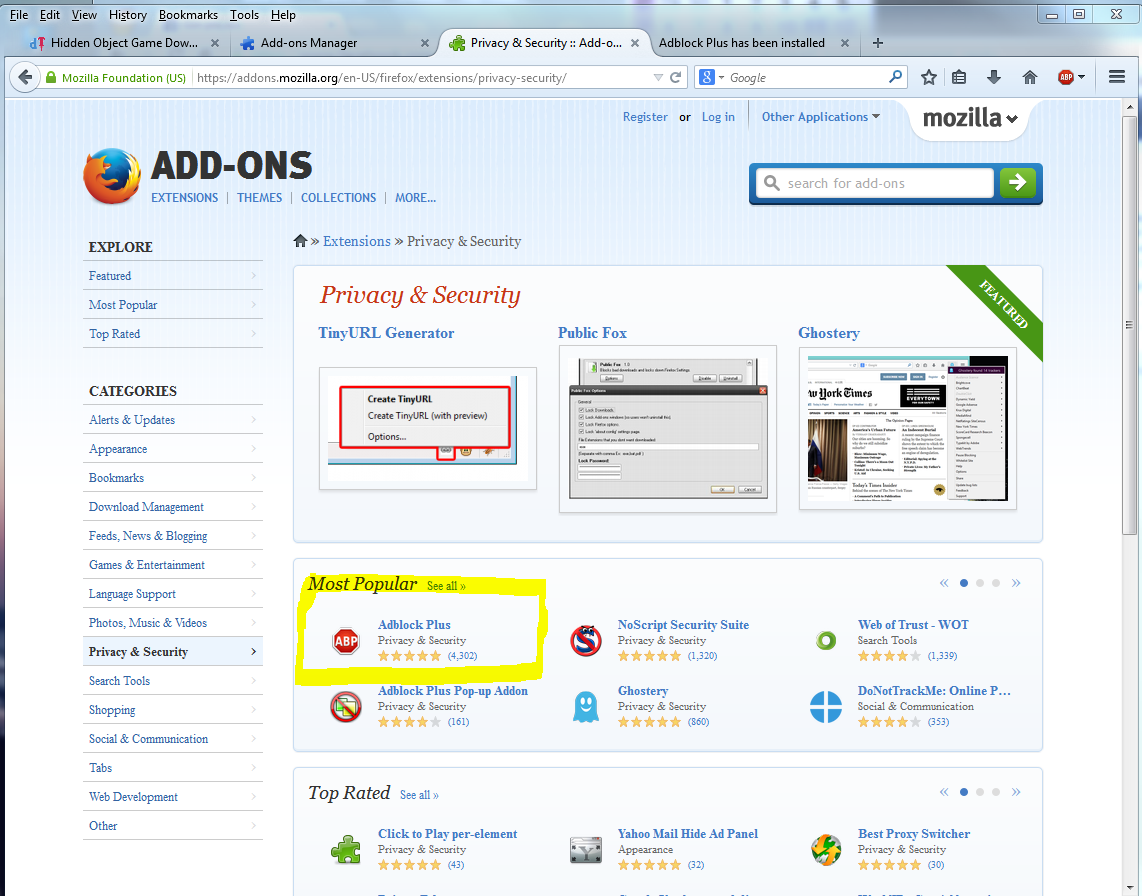
for Firefox go to add-ons, then get add-ons.
.

Saturday, July 5, 2014

How to Get Great Fireworks Photos with Your Phone

Wish I had read this before last night.
I'm sure it would have worked on my camera as well.


watching fireworks
Watching the July 4th fireworks has been a long-standing family tradition. But, capturing the beautiful aerial displays can be hard if you stick with the auto settings on your smartphone. So, try these simple tricks for fireworks photos you'll want to keep.
Joby GripTight GorillaPod

1. Use a tripod

When you take picture of fireworks, your phone's camera needs to hold the shutter open long enough to “see” the fireworks. The longer the shutter is open, the more susceptible your photo is to motion blur. So use a tripod to make sure there’s no movement. Joby's GripTight Gorillapod, which can wrap around trees and poles or stand up on the ground, is a great option that fits most smartphones. Price: $29.95 on joby.com or $16.74 on Amazon

2. Use the “landscape” mode

Camera+
The Camera+ app for iOS lets you set and lock focus manually.
Your phone's camera automatically tries to find an object on which to focus. And when presented with a black featureless sky, the camera doesn’t know what to do. By putting your camera in “landscape” mode, you’ll be presetting the focus to infinity and narrowing the lens opening, which keeps both near and far objects in focus.
If your smartphone's camera app doesn't have landscape mode, you'll want to manually set the focus to infinity. There's an infinity focus option with Shot Control ($2.99 in Google Play) for Android phones. For iPhones, you can use Camera+ ($1.99 in iTunes) and manually select and set a focal point in the distance.
If you have access to a camera, you'll want to look for "fireworks" mode. Most point-and-shoot cameras have a button or dial with “SCN” or “Scene” on it. Otherwise you’ll find it under the “menu” button. When you put your camera in scene mode, a list of the available modes will pop up on screen. Select the one that looks like a spray of fireworks and/or says "fireworks." 

3. Turn off the flash

Turning your flash off will let your phone's camera know that it only has available light to take a picture. This is important because the camera will then keep the shutter open long enough to capture the fireworks. The flash button is usually a separate button on the main camera app screen.

4. Turn down the ISO

ISO setting
High ISO will crank up the sensitivity of your phone's camera so it can see details in the dark. However, the fireworks themselves are quite bright. So, to avoid overexposure and reduce noise, take your camera out of Auto ISO and change the setting to ISO 100 or even lower. The ISO setting is usually found under the main menu.
Updated 7/3/2014 with new app information.

Thursday, March 13, 2014

The Comprehensive Guide to Facebook Privacy Settings

The first thing you have to realize about Facebook: Nothing you put there is truly private. Yes, you can control how users see or don’t see your profile. But every time you like a product or even look at a page, the company itself is taking note. This doesn’t mean that some day Facebook will malevolently release your every click to the world. But it does mean that Facebook is not your private diary, and what you do on the website gets collected and catalogued. That's worth keeping in mind whenever you use the service. That said, Facebook is a great way to stay in touch and share small and big moments with family, friends and assorted other connections. The key is making sure you’re presenting the most appropriate profile possible to each friend. So let’s go over the various settings you can change to ensure pictures of your wacky jaunt to Vegas don’t end up at the top of your boss's news feed. Since Facebook tends to opt you in automatically to sharing information as new features are released, it's a good idea to check your privacy settings every few months to maintain the level of transparency you want.
The following information was updated on March 12, 2014.
 

Check your current basic privacy settings

When you log in to Facebook, in the top right corner are two different ways to access your privacy settings. Clicking the lock icon opens a drop-down menu that shows Privacy Shortcuts. From here, you can make a few key changes to your settings.

Facebook PrivacyWho can see my stuff?

In this section, you get three settings to control how your posts are seen on the site and by whom.
Who can see my future posts?
Your options here are Public, Friends, Only Me and Custom. What you set this to becomes the default sharing setting for all your future posts. It does not affect anything you've previously posted.
We recommend you set this to Friends. If in the future you want to post something that you don't want all your friends to see, you can change this setting right in the post box. No need to come back to this default setting for one post.
You can also group your Facebook Friends in lists and restrict your posts to those lists. Use the Custom option for that.
Only set posts to Public that you are very sure you want out on the Internet forever. Public posts will be captured by Google and other web indexing services and made available to the world for all to see.
Where do I review who can see or find things I've posted or been tagged in?
This will take you to the Activity Log page. Here you can look at every post you've written, every photo you've uploaded, every friend's post you've liked and more. Basically, everything you've done on Facebook or been tagged as doing by others will show up here.
As you go down the list, you can un-like posts you don't want to be associated with, take yourself off tagged photos and even see posts you've hidden from your personal timeline.
You can also change who can see your posts and photos (i.e. custom setting) on an individual basis. And for your friend's posts you've liked and commented on, you can see the privacy settings on those. Didn't know that post you commented on was set to Public? You do now.
What do other people see on my timeline?
This will take you to a page where you can view your timeline the way others see it, even the public. You won't see much difference in your timeline view if you choose to see what it shows to different friends. This is mostly if you have set certain posts to be restricted (or thought you had).
One thing that is of interest is what is public — for example, the header picture you set to be at the top of your timeline. That's right: If it's a picture of your kids, that is public.

Facebook PrivacyWho can contact me?

People who are not your Facebook friends can still send you messages. This is where you can change that.
Whose messages do I want filtered into my Inbox?
It comes as a surprise to many people that they have a Facebook inbox. It's hidden down in a few menus. First, click on Messages on the left column of your Facebook home page under your name and profile picture. On the Messages page that then appears, click on the downward arrow next to the word More and choose Unread. You will now see the messages you never knew you had.
You have two choices for filtering what messages get to you: Basic (loosely defined as "people you may know") and Strict. What this boils down to is do you want messages from people who are friends of friends or not at all? Basic is more lenient with allowing emails; Strict is not.
Who can send me friend requests?
The default here is Everyone, because Facebook wants your network of social interactions to grow. But if you want to limit requests, you can always change it to only allow Friends of friends to send you requests.

Facebook PrivacyHow do I stop someone from bothering me?

This one is simple. Just enter in the name of the person or their email. Facebook will unfriend them for you, stop them from starting a new conversation with you and prevent them from seeing any of your posts.
Facebook doesn't like you to unfriend other users, and it provides a few alternate courses of action including messaging the friend to let them know they are bothering you as well as instructions on how to hide someone's updates from your news feed without unfriending them.
If you later change your mind, click on the View All Blocked Users to see who you have blocked, and unblock them. You will have to wait 48 hours to reblock them again.
 

Advanced settings

Now that we've covered the basics of privacy settings, we can dive into a few more options that will make your Facebook experience more pleasant.
Facebook Privacy

Customize all your timeline settings.

Now that you've mastered the basics, go down to the next section, Timeline and Tagging. From there, you can control exactly who sees what on your timeline, who can post to your timeline, and who can tag you in photos and posts. To check how people see your timeline, you can type any user’s name into View As. It’s a quick way to double-check that your boss doesn’t see your vacation pictures.
To customize your timeline settings, click on the button in the far right corner to reveal a drop-down menu and select Privacy Settings.
Who can post on your timeline?
It's set by default to Friends, and the only other option is to allow only yourself to post on your timeline. This gives you the most control over what appears on your timeline.
Review posts friends tag you in before they appear on your Timeline.
If you are concerned about getting tagged in a photo that you don't want all your friends on Facebook to see, this is the setting for you. Once enabled, you'll have to manually approve any photo or posts you are tagged in before they appear on your timeline. Note that this only affects timeline; those updates will still appear in searches, the news feed and other places unless you un-tag yourself.
Review what other people see on your timeline.
As we mentioned above, it's a perfect way to check that your mother or boss won't see what you don't want them to.
Who can see posts you've been tagged in on your timeline? & Who can see what others post on your timeline?
These areas give you a great deal of flexibility, with options ranging from Everyone to Friends of Friends to custom lists. Using these two in conjunction with manually approving what photos and updates you've been tagged in goes a long way to keep prying eyes away from more sensitive Facebook updates.
Review tags people add to your own posts before the tags appear on Facebook.
This is an important option if you are concerned about a photo popping up on your timeline. This applies only to photo tagging by your Facebook friends. You'll always be notified if someone who's not your friend tags you in a photo.
When you're tagged in a post, who do you want to add to the audience if they weren't already in it?
This one sounds more complicated than it is. Often a Facebook friend of yours will make a post and tag you in it. The option here allows all of your Facebook friends to see an update or photo you've been tagged in by someone they aren't friends with themselves (the Friends of Friends function).
You can choose to remain tagged but have none of your other Facebook friends see that update, limit who sees that update to certain groups of friends, or you can outright block certain Facebook friends altogether by using the Custom option.
Who sees tag suggestions when photos that look like you are updated?
Facebook uses face-matching technology to suggest who you should tag in photos. It will only suggest people that are on the user's friends list. If you don't want to show up as an option when your friends are tagging photos, set this to No One.
 
Facebook Privacy

Blocking

If you want to take steps to keep people away from your profile, this is the section for you.

Restricted list

If you don’t want to un-friend somebody but you don’t want them to see all of your information, you can add them to the Restricted List. This means they can only see your public information, but they have no way of knowing you’ve limited their view (unless they happen to see someone who isn’t restricted browsing your profile — but that’s probably not going to happen).

Block users

You can also just straight up block somebody. This means this person cannot be your friend. This is an excellent setting if you have stalkers or other people consistently bothering you. Note that this does not stop them from interacting with you in apps, games or groups you're both a part of.

Block app invites

In addition to blocking and restricting people from your profile, you can also block app invitations on a user-by-user basis. So if your Aunt Jackie keeps bombarding you with FarmVille apps, you know what to do.

Block event invites

Tired of your nephew inviting you to his New York City raves every weekend? Typing the name of the Facebook user into this section will stop you from seeing any future event invites from that person.

Block apps

Some apps and Facebook games are great fun at first, but after a while, you want to drop them. You can remove the app or game (see the Apps you use section, below) or block the app, which means it can no longer contact you or get non-public information about you through Facebook. If you are getting emails from the app, you will have to use the unsubscribe link at the bottom of the email.
 
Facebook Privacy

Customize your app privacy

After you finish adjusting the blocking section, click over to the App Settings section. It’s not quite as obvious as changing your timeline settings, but apps often gain a lot of access to your information, and they can do things you might not want them to: collect data about your location, post on your timeline and more.

Apps you use

Click Edit next to a listed app to gain all sorts of controls, including who can see that you are using the app to removing the app altogether. If you want to remove an app, click on the X to the right of the Edit button.

Apps others use

This is where you can control what apps find out about you when you are the friend of the person using the app. Choose exactly what information apps can pull from your profile in 17 different categories.

Instant personalization

Facebook provides profile information about you to outside sites to "personalize your experience." That's Facebook code-speak for looking at your profile to deliver ads and content the company believes you'll be more interested in. Sites listed include Bing, Yelp, Zynga and others.
If you don't want these outside sites to pull your profile Facebook, click the checkbox in this section. You'll get two warnings before it actually happens, so be sure to click through all boxes.

Old versions of Facebook for mobile

If you use an older version of Facebook mobile (such as outdated versions of Facebook for Blackberry), you won't be able to select who can see your updates when posting from that app. You can set it here instead.
 
Facebook Privacy

Customize your ad settings

Facebook is now a pervasive marketing and advertising tool, and all sorts of businesses want access to your preferences so they can better target you. It’s kind of impossible to use Facebook without leaving some sort of trail of breadcrumbs for advertisers, but you can reduce this in a couple of ways.
First, go to your Ad Settings, located right under App Settings. If you don’t want Facebook to use your preferences in ads, click on the Edit button on the right of the Ads & Friends and Third Party Sites and then change those settings to No One. That means your name won’t get used in an ad for something that you’ve liked. However, this won't prevent sponsored posts from companies you've liked — those items that appear in the news feed, not ads — from being sent with your name. And you'll still receive sponsored posts from companies your friends have liked.
If looking at targeted ads gives you the heebie-jeebies, you can dial down the frequency of the ads by manually hiding stories by each company that targets you. It’s a cumbersome task, but it allows you to get rid of ads that are particularly annoying. You can do this by clicking the small X in the upper right corner of an ad.
Taking these steps will help you control who sees your Facebook page, but you should check every so often to make sure your privacy settings have remained the same.
Still have questions? Leave them in the comments below, and we'll see what we can do to find answers for you.

Friday, February 28, 2014

Nobody is immune.

I've been tied up with google over a deleted (I did it on purpose) post with 2 photos, also deleted. They are however searchable by google because I used his full name.
 Problem is the post was about my grandson (a minor). He did like the post, and even showed it to friends. But was upset that friends could google his name and see any picture of him at all.
Still fighting this battle. Hope it isn't going to take a lawyer.
Plus it took several hours to remove the conduit search from my browsers. It was a hitchhiker on a harmless file from my trusted (NEVER AGAIN) download site ' download.cnet.com  '. I got sloppy and didn't pay attention to the installation. 
I had to uninstall the files then track down all instances of files for conduit which included in the common files, app data, roaming local and local low. with that cleared I got Hijackthis from Sourceforge.com and was able to isolate the bad registry entries and delete them.
Happy to say I'm now back in control of my browsers.

Monday, January 13, 2014

disposable?

Too lazy to redo the post here.
 
Apparently people can afford to throw away money.
This is about a PC someone threw out that, with a little elbow grease to clean it, is better than new because I upgraded it.

Sunday, November 24, 2013

4 Signs You Love Your Tech Too Much


There's a fine line between loving your tech and loving your tech too much.


After much consideration, I've realized that I fall on the wrong side of the line between tech sanity and tech obsession. I definitely love tech too much. Do you? Here are four warning signs to look out for.

You check your phone in bed

Like most people, when I first wake up in the morning I stretch a bit, get out of bed, brush my teeth, and turn on my coffee maker. Of course, before I do any of that, I use my smartphone. Priorities. And I’m not the only one who does it either: A recent ten-city survey of mobile phone users found that 84% of Americans check a smartphone app first thing in the morning when we wake up.
Certainly, there’s nothing wrong with wanting to stay connected. But researchers at the Renesselaer Polytechnic Institute warn that bright displays from tablets and phones is linked with increased risk for sleep disorders and melatonin suppression. Other scientists warn that using your phone, even just to check emails, can boost stress levels – something you don’t want to do in an environment dedicated to rest and relaxation.
So, as tempting as it may be to check your phone in bed, try to hold off. You’ll sleep better.
Come on, you're sitting right next to each other. Put down
your smartphones and talk to each other already!

From the other side of the couch, with love

From my younger cousins to my aging parents, everyone in my family has embraced text messaging. Sure, we could call each other on the phone, but texting seems simpler and less intrusive. Who has time for conversations these days?
That’s all well and good, but here’s where my tech obsession spills into social dysfunction: I’ve started to text people, even when I’m in the same room as them. It doesn’t happen all the time, but it’s becoming a natural habit. And that’s bad news – a recent Brigham Young University study shows that increased texting may ruin relationships.
So if you find yourself texting someone who’s sitting a few feet next to you on the couch, turn your phone off and start a real conversation. Your relationship will be better for it.

You genuinely fear being without it

I keep telling myself that I’m not addicted to my smartphone. I can quit using it at any time. But the moment I leave home for a quick errand and realize I left my phone at home, I go through a panicked withdrawal.
Believe it or not, there’s a word for this: Nomophobia, the fear of being without your mobile phone. According to a U.K. study, over half of us feel anxiety when we forget our smartphones or start running out of battery life. And in many cases, the level of stress caused by nomophobia rivals that of getting the drill at the dentist.

You keep watch over a tech graveyard

Open your right desk drawer. Now open the left. Are either filled to the brim with old, outdated tech devices like clamshell phones, beepers and digital cameras that record directly to floppy disk? If so, you’re probably an collector. (It’s okay – there’s a tech graveyard in my house too.)
People joke about tech devices practically being obsolete by the moment you cut the shrink wrap off the box. But that’s not quite true – even older devices like the iPhone 4 still have a surprising amount value to the right people. You can make a ton of extra cash by trading-in your gently used tech.
Can’t bear to part with that old smartphone you’re not using, even though you know could get some real cash for it? Then you definitely love tech too much, you collector, you. Either that, or you’re a hoarder.